Note
Go to the end to download the full example code.
Low-level Tikz commands#
Use more low-level features of Tikz for added flexibility.
import pykz
Make sure to open a new figure, otherwise, you may keep adding to one created in a previous script.
pykz.figure()
TikzPicture()
You can define your own styles, like one would using tikzset.
These styles automatically get added to the tikz code, so you can refer
to their names in any draw, fill, node, … command that follows.
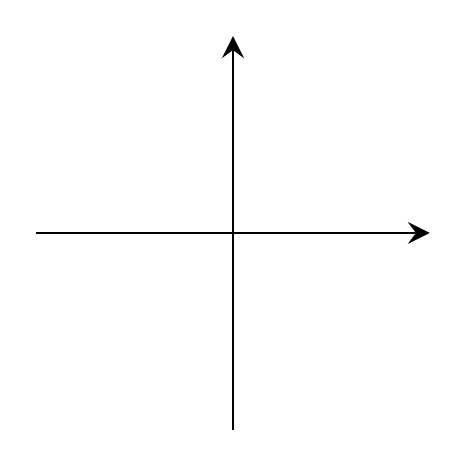
pykz.define_style("arrow", **{">": "stealth", "->": True})

pykz.line([(-1, 0), (1, 0)], arrow=True)
pykz.line([(0, -1), (0, 1)], arrow=True)

# Export your tex code as a standalone file
pykz.save("low_level_tikz.tex", standalone=True)

# You could also directly build the pdf
pykz.io.export_pdf_from_file("low_level_tikz.tex")
Removing low_level_tikz.log
Removing low_level_tikz.aux

PosixPath('low_level_tikz.pdf')
Alternatively, output it to png
pykz.io.export_png_from_file("low_level_tikz.tex")
Or, save the Tikz code to a temporary file, compile it, and open the pdf in the default viewer.
This would be the equivalent to plt.show()
pykz.preview()
Alternatively, use the high-level functions
fig = pykz.figure()
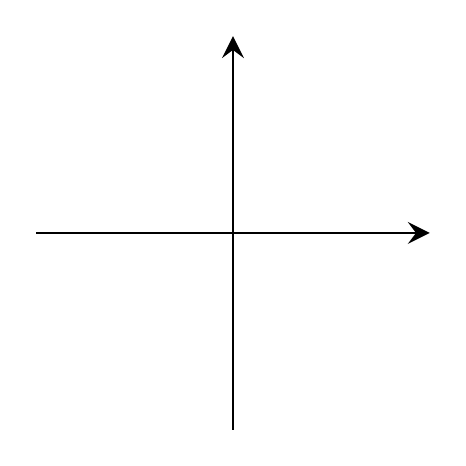
fig.set_option(">", "stealth")
pykz.arrow([(-1, 0), (1, 0)])
pykz.arrow([(0, -1), (0, 1)])

# Export your tex code as a standalone file
pykz.save("low_level_tikz.tex", standalone=True)
# You could also directly build the pdf
pykz.io.export_pdf_from_file("low_level_tikz.tex")
Removing low_level_tikz.log
Removing low_level_tikz.aux

PosixPath('low_level_tikz.pdf')
Alternatively, output it to png
pykz.io.export_png_from_file("low_level_tikz.tex")
Or, save the Tikz code to a temporary file, compile it, and open the pdf in the default viewer.
This would be the equivalent to plt.show()
pykz.preview()
Total running time of the script: (0 minutes 0.541 seconds)
Related examples